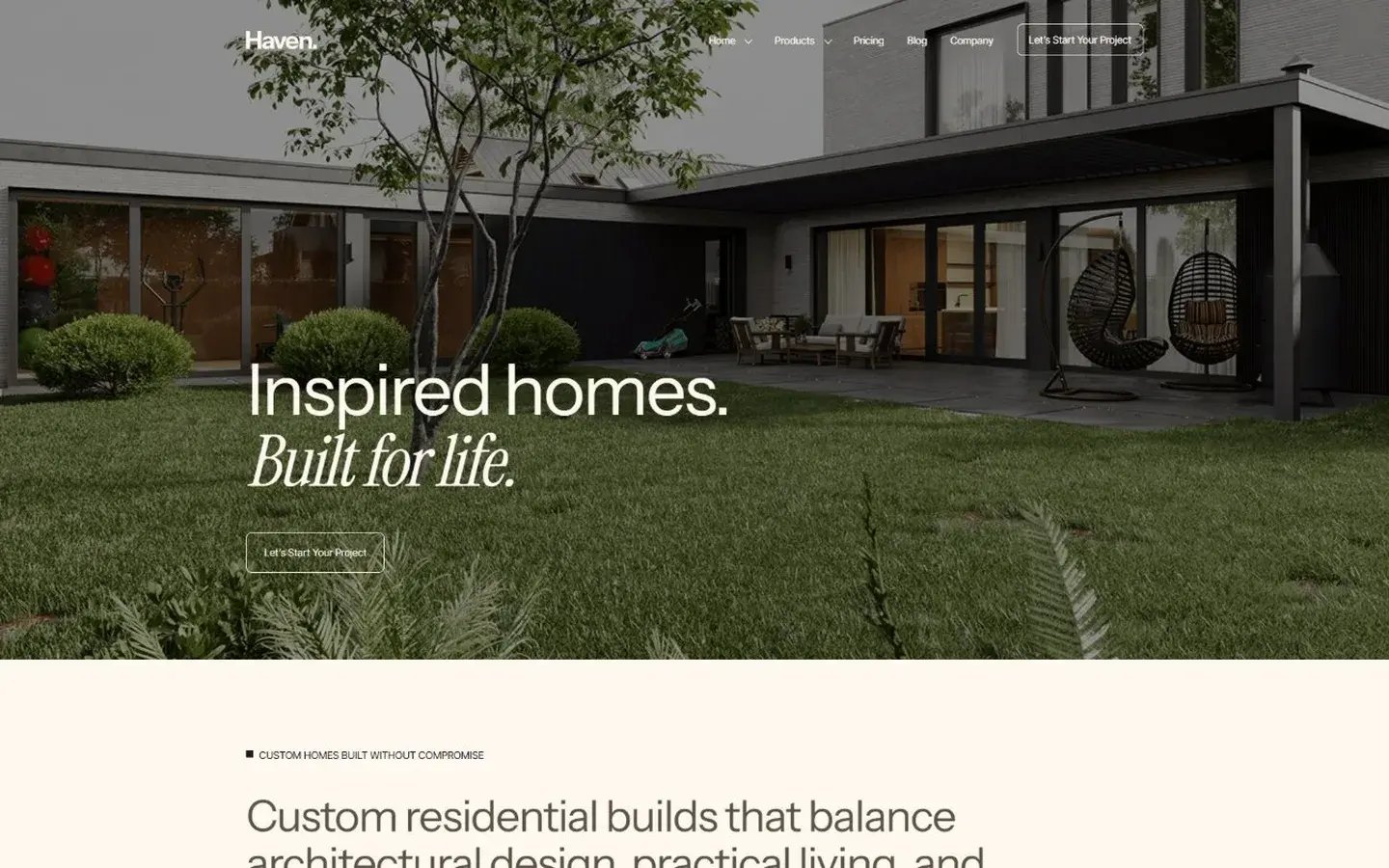
 01
Marketing
Home
Hero, featured homes, approach, process, reviews and contact.
Everything you need to install, style and launch a Haven site. Start with the quick setup, then explore every template and module.
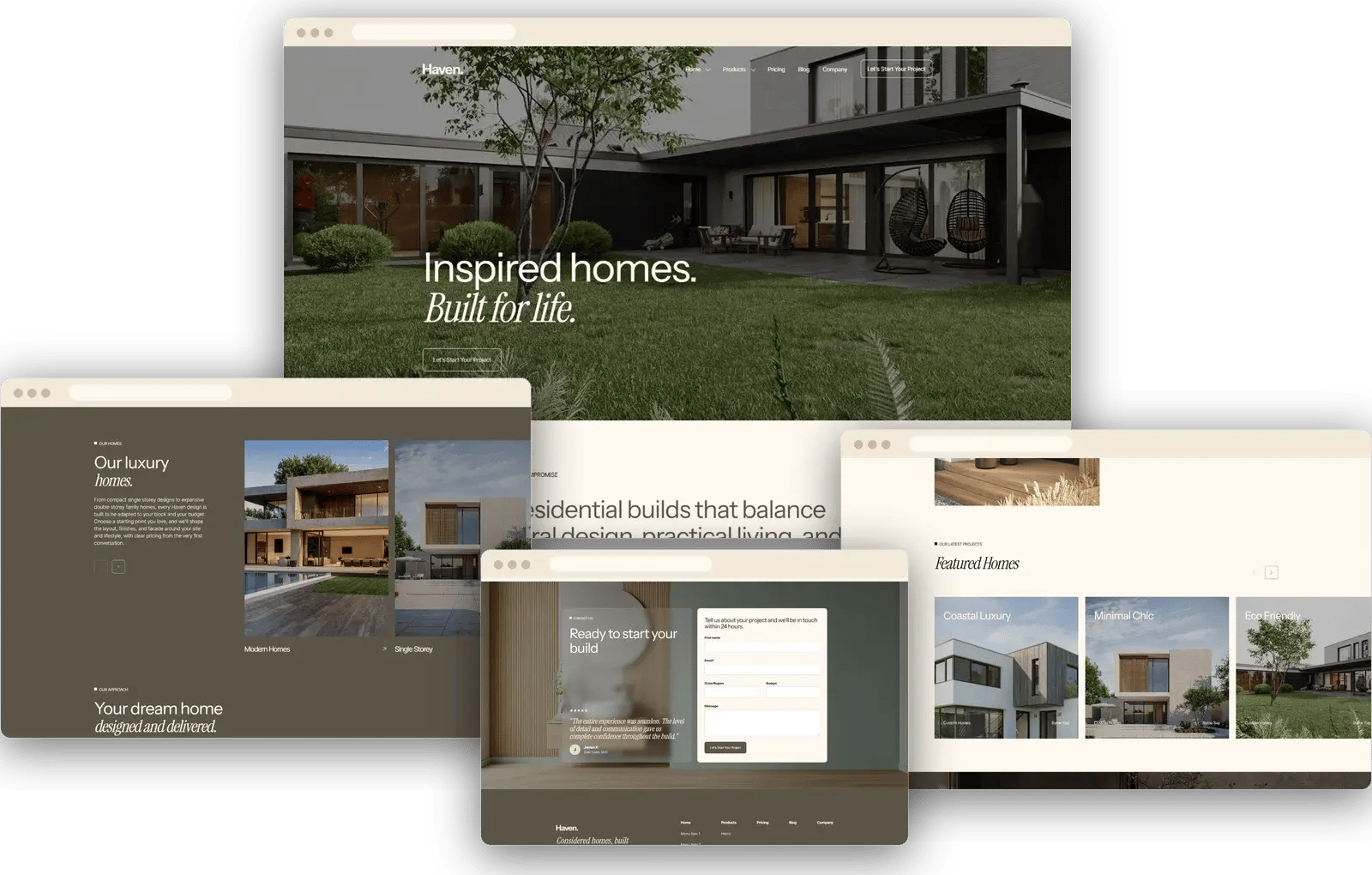
Introduction
Haven is a drag-and-drop HubSpot theme that helps builders show off projects, homes and floor plans, without writing a line of code.
Build every page from modules in the HubSpot page editor.
Layouts adapt to desktop, tablet and mobile screens.
Change colours, fonts and buttons once in theme settings.
A HubSpot account with CMS Hub. [CONFIRM MINIMUM CMS HUB TIER BEFORE SUBMISSION]
Installation
Follow these in order. The whole setup takes about ten minutes.
Open the Haven listing in the HubSpot Template Marketplace and choose Install. The theme is added to your Design Manager.
Go to Content, then Website Pages, then Create, and pick Haven from the theme list.
Select a template such as Home, About or Project Listing, then add modules to the page.
Open Settings, then Website, then Themes, and update colours, fonts and buttons in the Haven theme settings.
Tip. Start from the demo Home page, replace the sample text and images, then remove any modules you do not need.
Theme Settings
All global styling lives in the theme settings. Find them in the page editor under Theme settings, or in Design Manager under Edit theme settings.
Button style, colours and hover states.
Logo, navigation menu, footer links and social icons.
Field, label and submit button styling for every HubSpot form.
Page Templates
Every page a real estate site needs. Rearrange or replace any section with drag and drop.
01
Hero, featured homes, approach, process, reviews and contact.
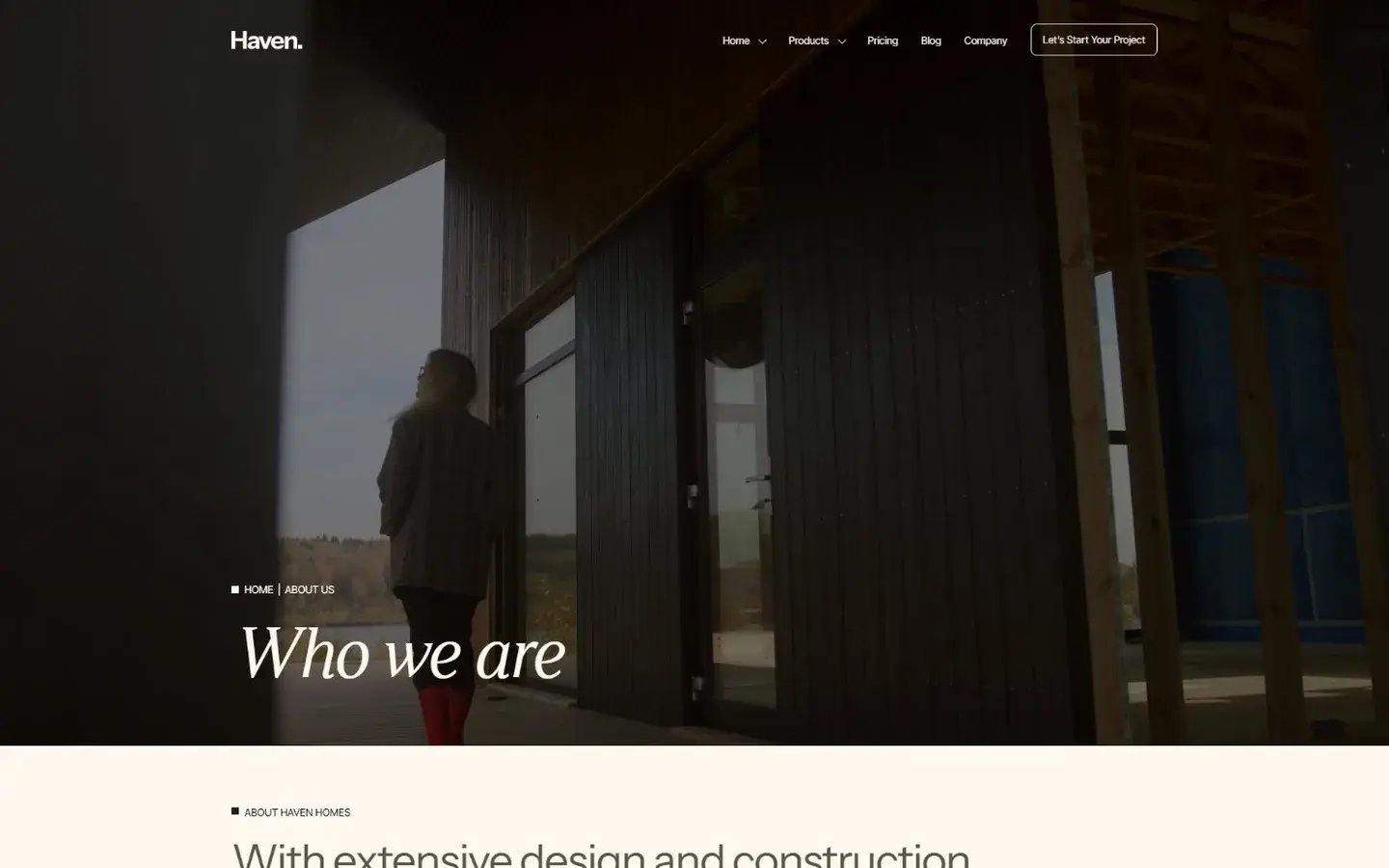 02
Company story, awards, team and key features.
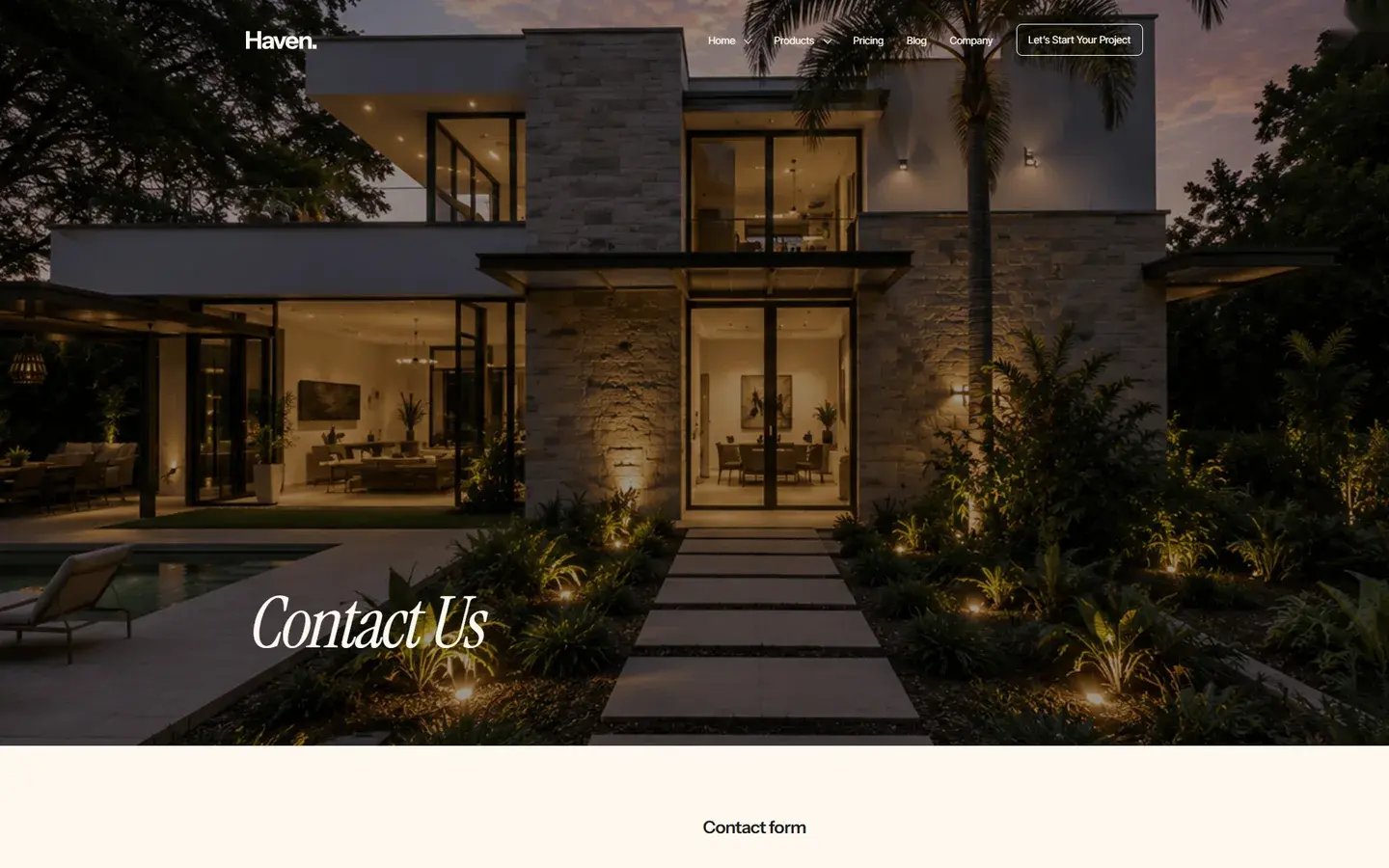 03
Contact form, details and client testimonial.
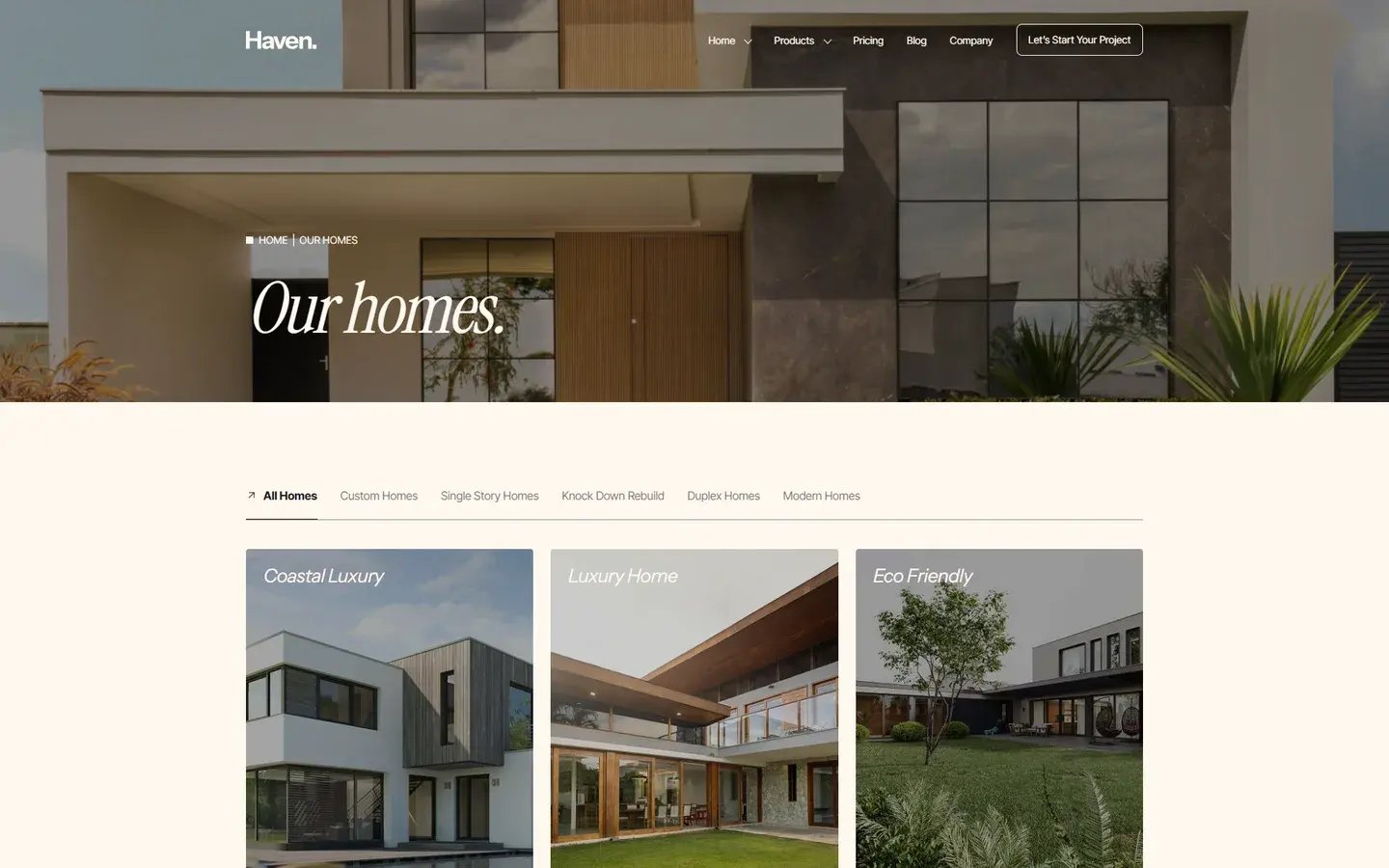 04
A grid of home cards that link to the detail page.
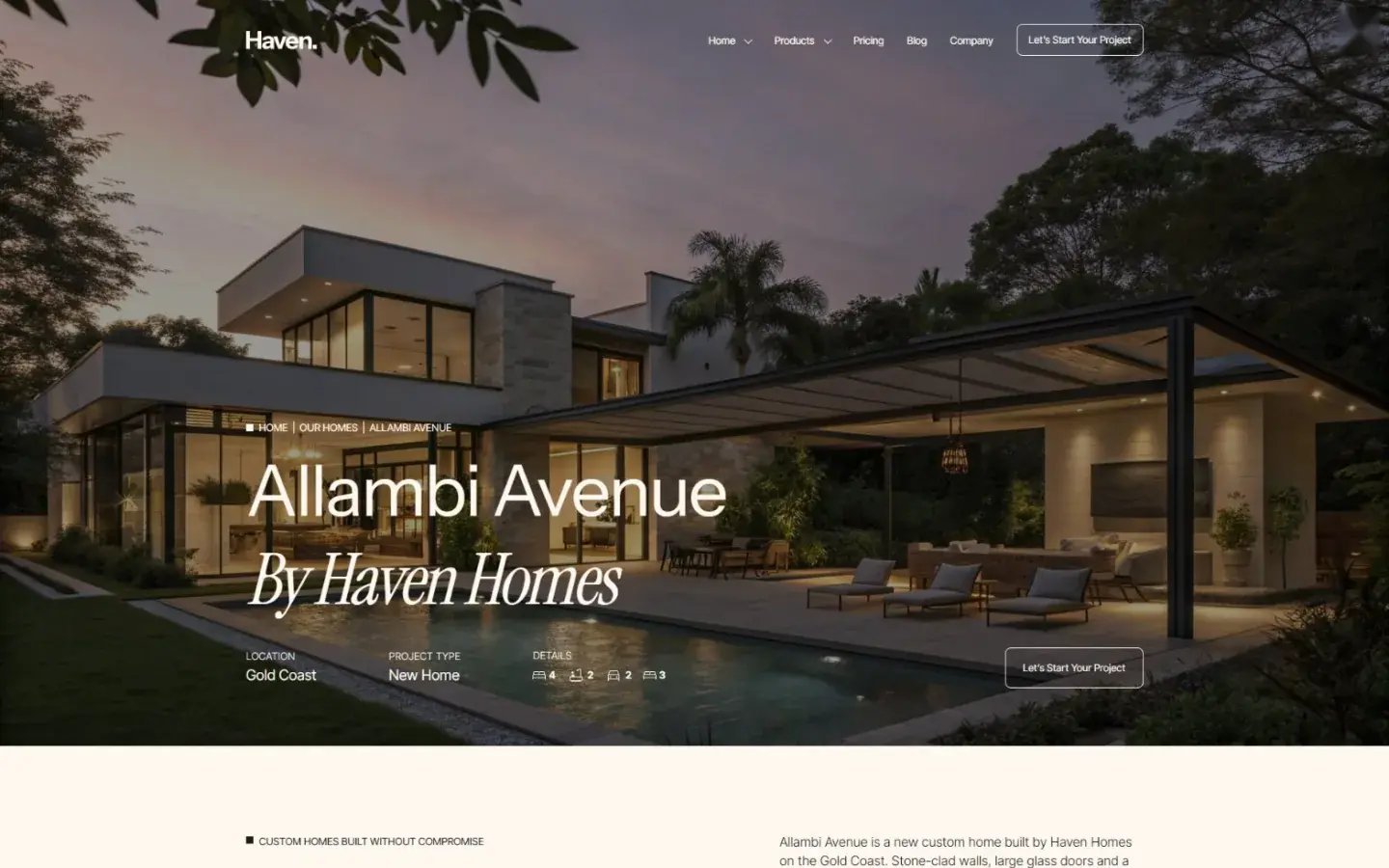 05
Gallery, details, features, amenities and floor plans.
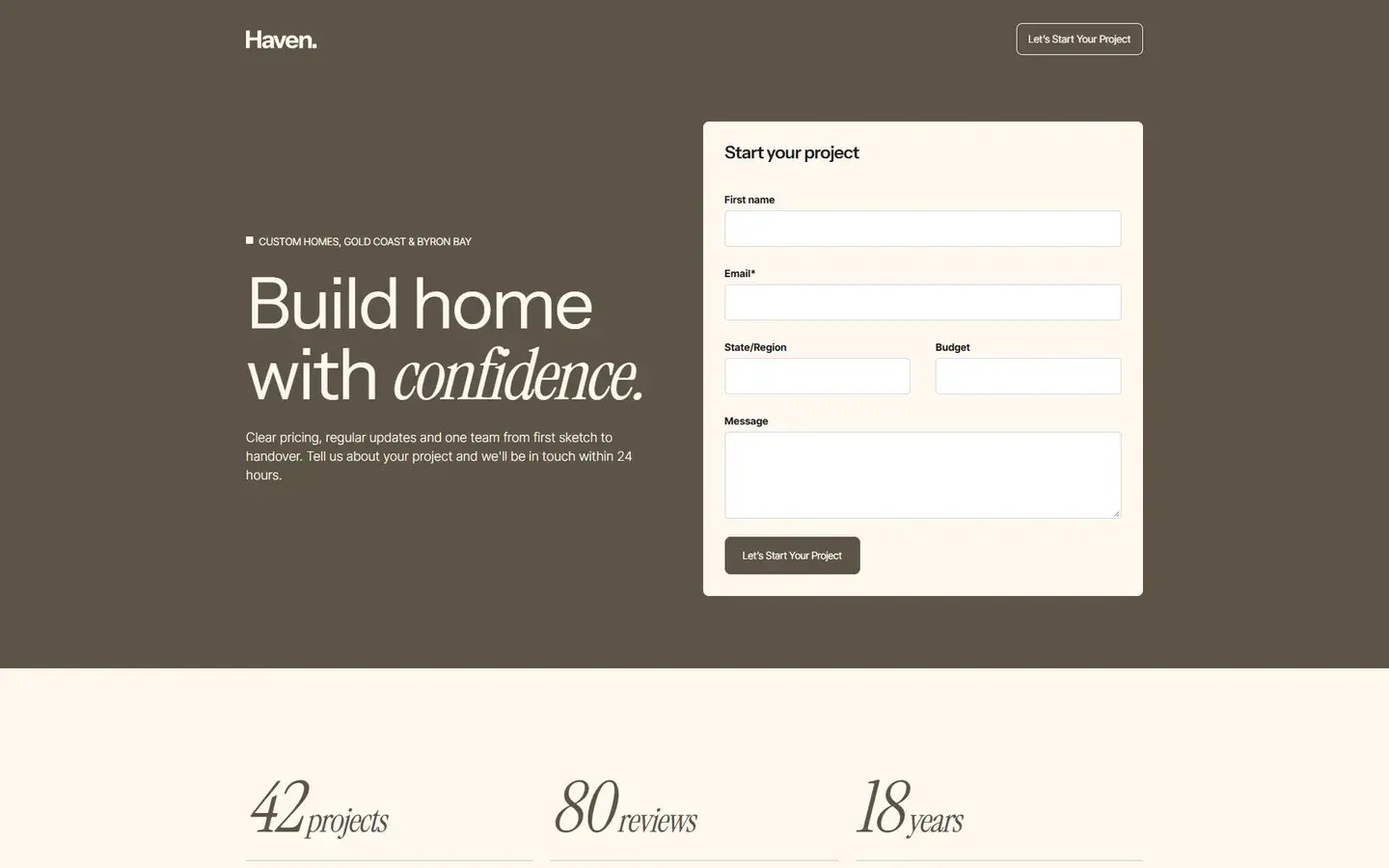 06
A focused page with a simple header for campaigns.
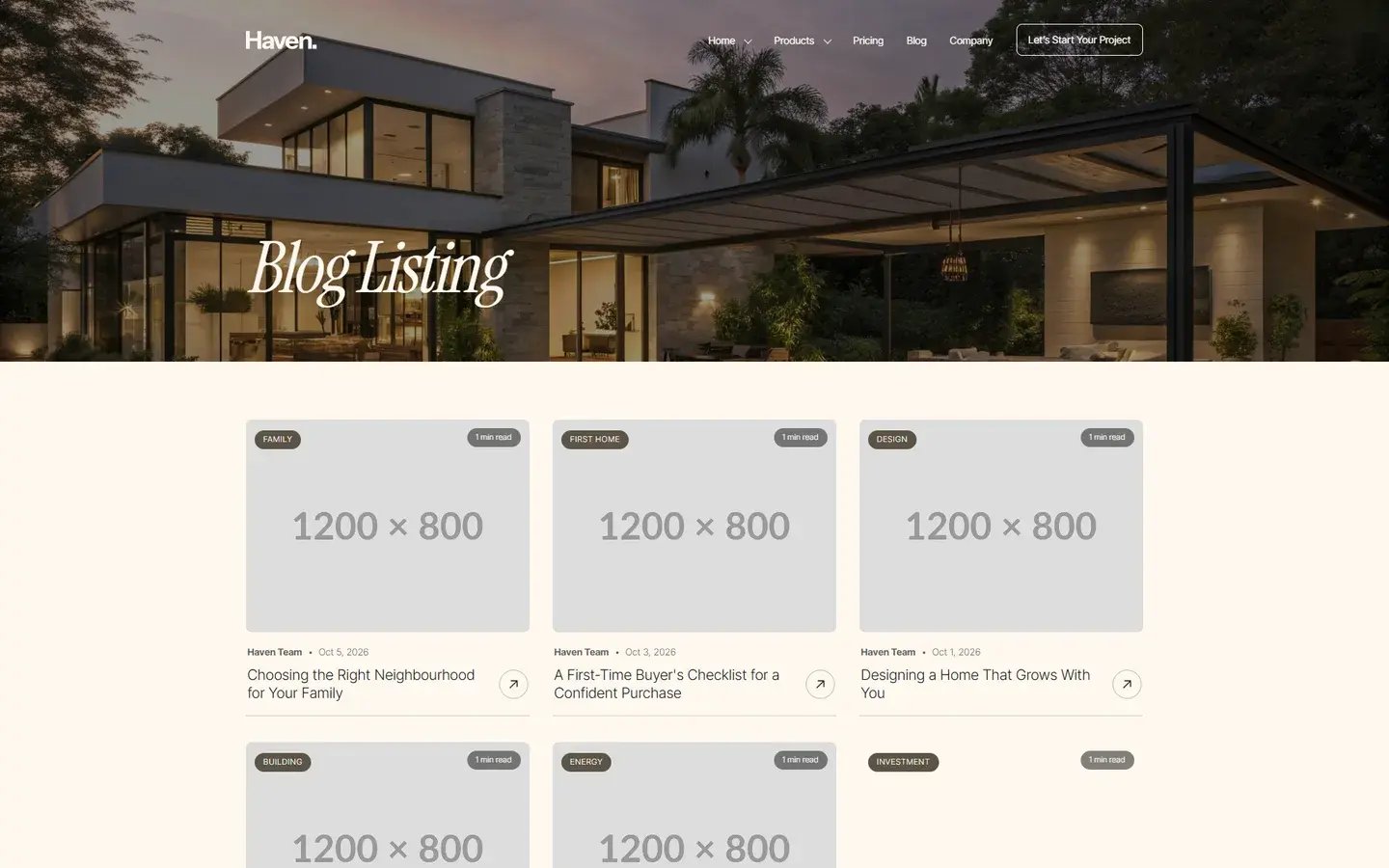 07
Blog index with pagination.
 08
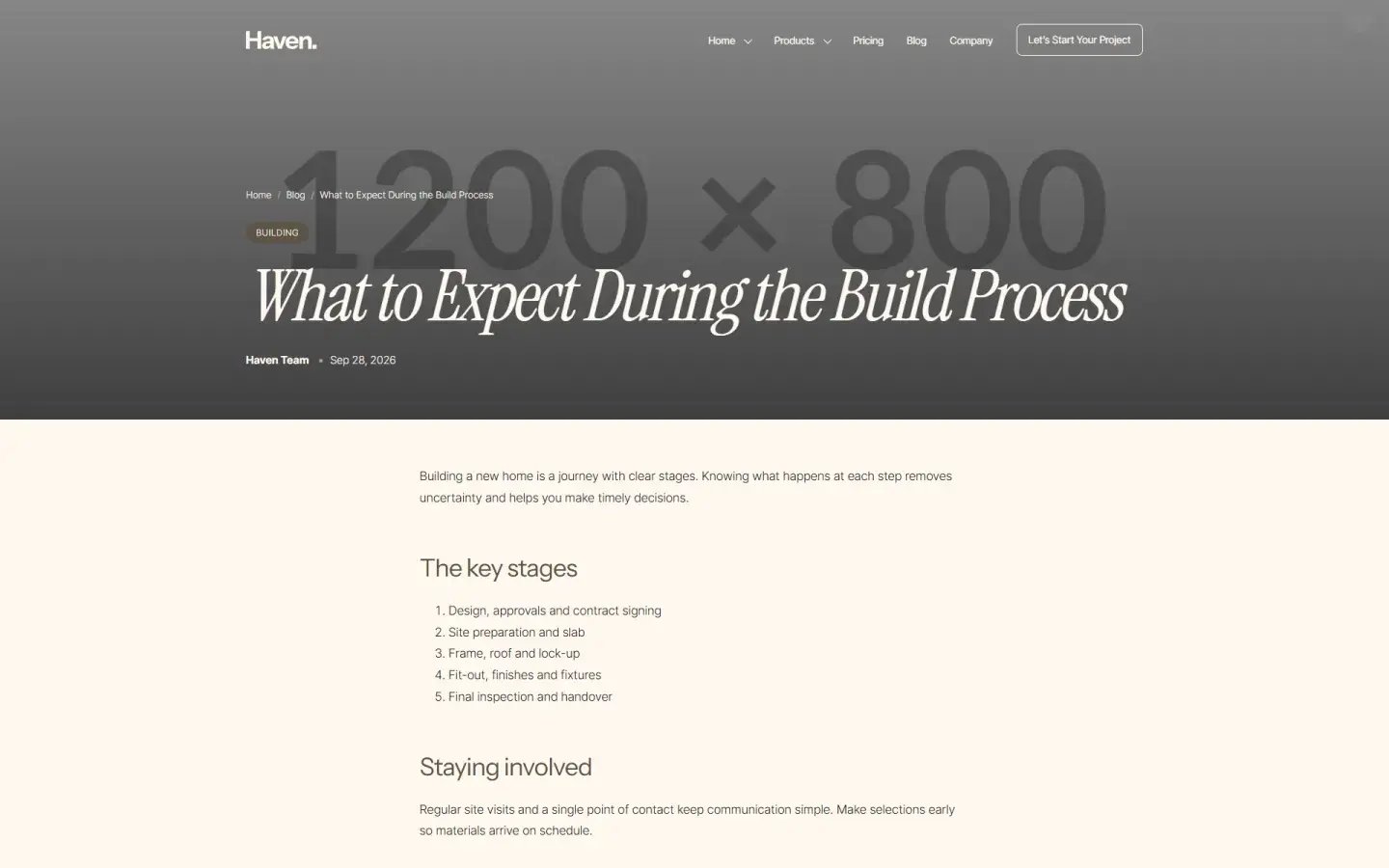
Single article layout with related posts.
System Pages
These 11 pages use HubSpot's built-in logic with Haven's styling. Edit their text in Design Manager.
Error page shown when a page is not found.
Error page shown when something breaks on the server.
Results page for the site search.
Gate for password-protected pages.
Sign-in page for members.
Sign-up page for new members.
Ask for a password reset email.
Set a new password.
Let people choose which emails they get.
Confirms a changed subscription.
Fallback unsubscribe page.
Modules
Add them from the Modules panel in the page editor, then edit the content in the left sidebar. Use the filters to browse by group.
Full-width hero with heading, text and call to action.
Hero with a video that opens in a popup.
Header banner for project and detail pages.
Page title banner for inner pages.
Simplified header for landing pages.
Full footer with menus, contact details and social links.
Minimal footer for landing pages.
Highlight selected homes with image and details.
Grid of home cards linked to the detail page.
Slider of homes with navigation controls.
Key facts about a project at a glance.
Tabbed details for a single property.
List of features and amenities with icons.
Floor plan images that open in a zoomable viewer.
Eyebrow, heading and paragraph introduction.
Image or video beside a text block.
Video section with supporting copy.
Stand-alone video with a popup player.
Grid of highlights with icon, title and text.
Hover-driven list that explains your approach.
Numbered steps that show how you work.
Expandable question and answer list.
Flexible card grid with image, title and text.
Pricing option with features and a button.
Animated number counters for key stats.
Stand-alone button with style options.
Responsive image grid with lightbox.
Continuous scrolling image slider.
Awards and recognition with logos.
Client reviews with platform logo and star rating.
Slider of client testimonials.
Team members with photo, name and role.
Section with a HubSpot form and contact details.
Form paired with a testimonial slider.
Grid of blog posts with pagination.
Demo Content
The demo uses a fictional brand with sample homes, text and images. Replace all of it with your own before going live.
Sources and Credits
Haven uses these libraries and fonts. [CONFIRM THIS LIST AGAINST THE FINAL THEME BEFORE SUBMISSION]
FAQ
Cannot find what you need? Reach out below.
Open the theme settings in the page editor and update the Colours and Typography groups. Changes apply to every page.
Edit the home listing module on the Project Listing page. Each card has its own image, title, details and link.
In the contact modules, choose a form from your HubSpot account in the form field. It picks up the theme's form styling.
Yes. Edit them from the theme settings and the global modules, and choose the menus you want to show.
Demo images are for preview only. Upload your own images in the File Manager and select them in each module.
Support
Check this documentation and the FAQ first, then get in touch.